Worker
A worker lets you write the business logic of an action in your favourite programming language, directly at the backend. You write a single function which receives the request and returns a response. Inside the function you can use all connections which are configured at Fusio, i.e. your database.
Available workers
| Action | Language | Runs on | Setup required |
|---|---|---|---|
| Worker-PHP-Local | PHP | Your Fusio instance | No |
| Worker-PHP | PHP | A separate PHP worker | Yes |
| Worker-JavaScript | JavaScript | A separate JavaScript worker | Yes |
| Worker-Python | Python | A separate Python worker | Yes |
| Worker-Java | Java/Groovy | A separate Java worker | Yes |
The easiest way to get started is the Worker-PHP-Local action, since it executes the code directly on your Fusio instance and requires no additional setup.
The Worker-PHP-Local action allows to execute arbitrary PHP code on your server. If you don't want this, you can exclude this action through the config.
How it works
A worker is a small separate web service which executes your code. When the action is invoked, Fusio sends the request together with the configuration of all connections to the worker. The worker executes your function and returns the response, which Fusio then sends to the client.
Through this your code runs in the native environment of the language, i.e. the JavaScript worker runs on Node.js,
and you can use the libraries of the ecosystem. Each worker uses the most common library of the language to provide
your connections, i.e. for a MySQL connection the JavaScript worker uses mysql2 and the Java worker uses
java.sql.Connection. You can find the supported connection types at the page of each worker action.
Set up a worker
The following steps are only needed for remote workers, the Worker-PHP-Local action works out of the box.
Step 1: Run the worker
Every worker is available as Docker image. If you use our Docker setup, you can add the
worker as service to your docker-compose.yml and set the fitting environment variable at the Fusio container.
Fusio then creates the connection to the worker automatically at startup:
services:
  fusio:
    image: fusio/fusio
    environment:
      # ...
      FUSIO_WORKER_JAVASCRIPT: "worker-javascript:9091"
    links:
      - worker-javascript

  worker-javascript:
    image: fusio/worker-javascript:2.0
    restart: always
    volumes:
      - ./worker/javascript:/worker/actions
The following workers are available:
| Worker | Image | Environment variable | Repository |
|---|---|---|---|
| Java | fusio/worker-java | FUSIO_WORKER_JAVA | fusio-worker-java |
| JavaScript | fusio/worker-javascript | FUSIO_WORKER_JAVASCRIPT | fusio-worker-javascript |
| PHP | fusio/worker-php | FUSIO_WORKER_PHP | fusio-worker-php |
| Python | fusio/worker-python | FUSIO_WORKER_PYTHON | fusio-worker-python |
Step 2: Create a connection
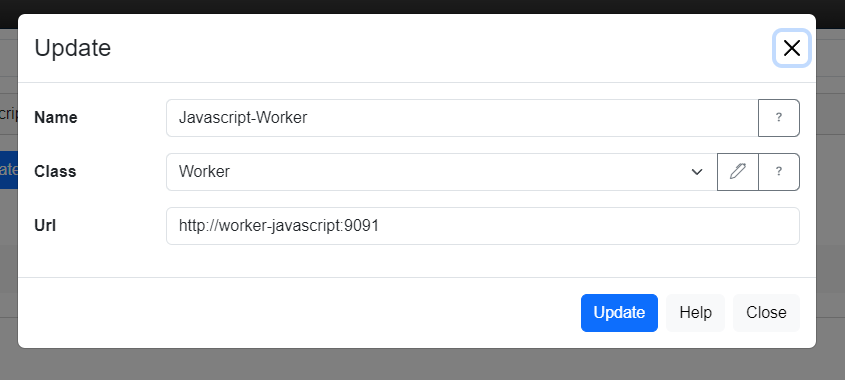
If you don't use our Docker setup, you need to create the connection to the worker manually. Go to API / Connection,
select the Worker connection class and enter the URL of your worker:
Step 3: Create an action
Now you can create an action which uses the worker. Go to API / Action, select the worker action of your language,
i.e. Worker-JavaScript, select the worker connection and enter your code:
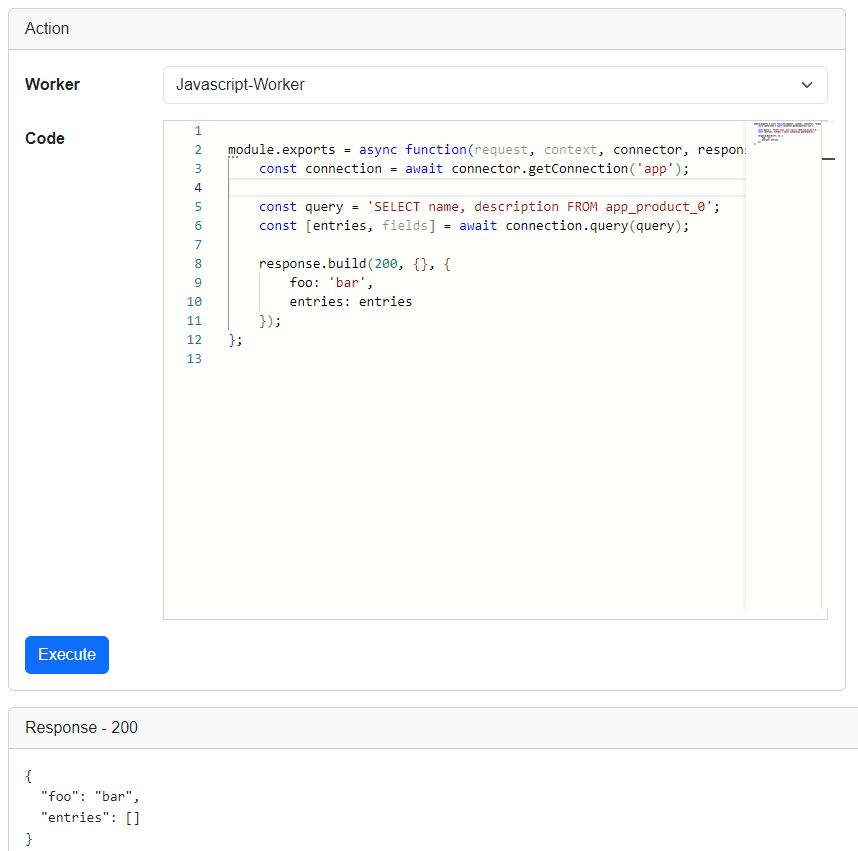
In this example we select some data from a database table, but you are free to implement any logic. Like every other action, you can then use the action at an operation, cronjob or trigger.
Next steps
- Take a look at the Worker code page to learn which functions are available inside your code
- Take a look at the SQL and HTTP pages for examples of common tasks