Agent
An agent is an AI assistant for a specific task. You describe the agent through an introduction prompt, select the operations it can use as tools and optionally a schema for structured output. Every agent uses a connection to communicate with the LLM.
Create an agent
Go to API / Agent and click on create. In this example we have created "My-Math-Agent", which helps users to solve math problems:
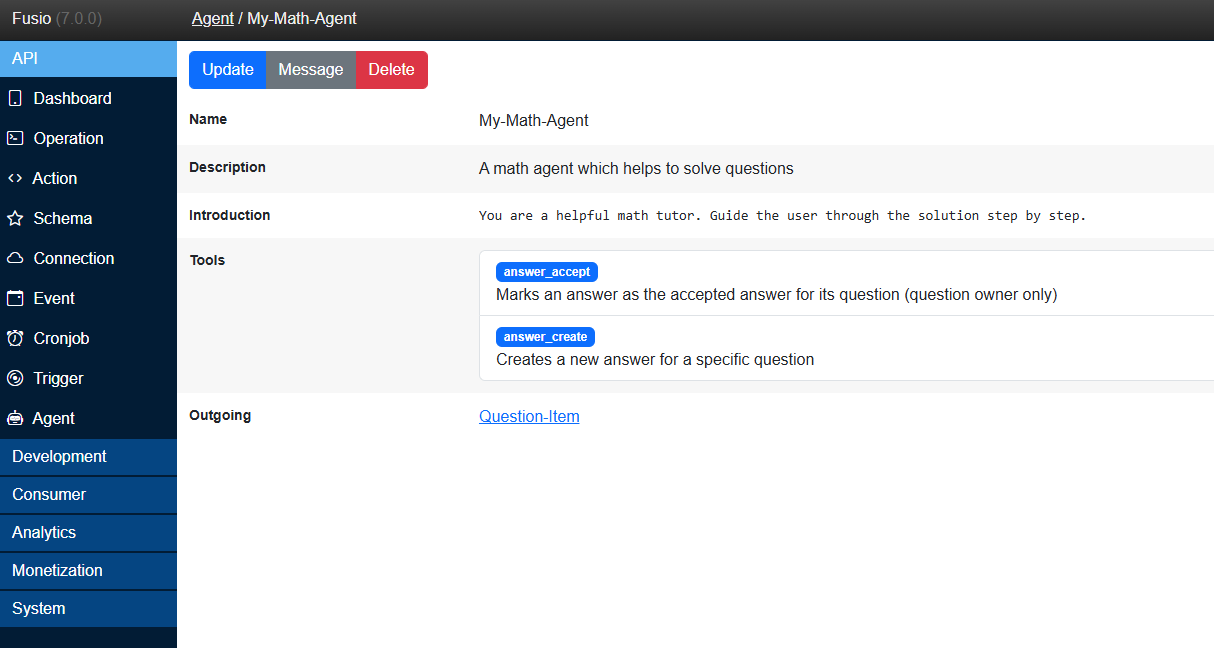
An agent has the following settings:
Connection
The connection to the LLM provider which this agent uses.
Type
The type of the agent. For your own agents always use General, the other types are used by the
built-in agents and enable special views at the backend.
Name and description
The name identifies the agent, the description explains in one sentence what the agent does. The description is also shown to your customers in case you publish the agent.
Introduction
The introduction is the most important part of an agent. It is the system prompt which tells the LLM what the agent is, what it should do and how it should respond. A good introduction contains:
- The role: Who is the agent, i.e. "You are a helpful math tutor"
- The task: What should the agent do, i.e. "Guide the user through the solution step by step"
- The rules: What the agent should and should not do, i.e. "Only answer questions about math"
- The tools: When the agent should use which tool, i.e. "Use the
order_getAlltool to look up the orders of the user"
You are a helpful math tutor. Guide the user through the solution step by step.
Only answer questions about math, for all other questions politely explain that you can only help with math.
Explain every step in simple words, so that a student can follow the solution.
Introduction action
Optionally you can select an action which is executed before every message to add dynamic data to the introduction. The response of the action is passed as variables to the introduction, which is a Twig template. Through this you can i.e. include the current date, data about the user or relevant documents:
You are a support assistant of ACME. Today is {{ date }}.
The following products are available: {{ products }}
Tools
The operations which the agent can call as tools. The LLM decides on its own when to call which tool,
based on the description and schemas of the operation. Because of this, a clear description
and schema of the operation improves how well the agent uses it. The tool name is derived from the operation name,
i.e. the operation answer.create becomes the tool answer_create.
The agent executes the selected operations directly. Only select operations which the agent should be allowed to execute, especially if you publish the agent to your customers.
Outgoing
Optionally a schema which describes the response of the agent. In this case Fusio requests structured output from the LLM, so that the agent returns JSON in the described format instead of text. This is useful if the response is processed by an application, i.e. to render the steps of a solution in your frontend. Whether the response always matches the schema depends on the model, s. Choosing a model.
Temperature
Controls how creative the responses are. A lower temperature produces more focused and predictable responses, which is good i.e. for data extraction. A higher temperature produces more varied responses, which is good i.e. for writing texts.
Costs
The number of points which a user pays per token, in case you monetize your agent. Fusio deducts the points based on the tokens which were used by the LLM, and limits the length of the response to the points which the user has left.
Public
Whether customers can use this agent through the Consumer API and developer portal, s. Publish an agent.
Chat with an agent
At the backend you can chat with every agent through the "Message" button at the agent detail page. This is the best way to test and improve the introduction and tools of your agent before you publish it:
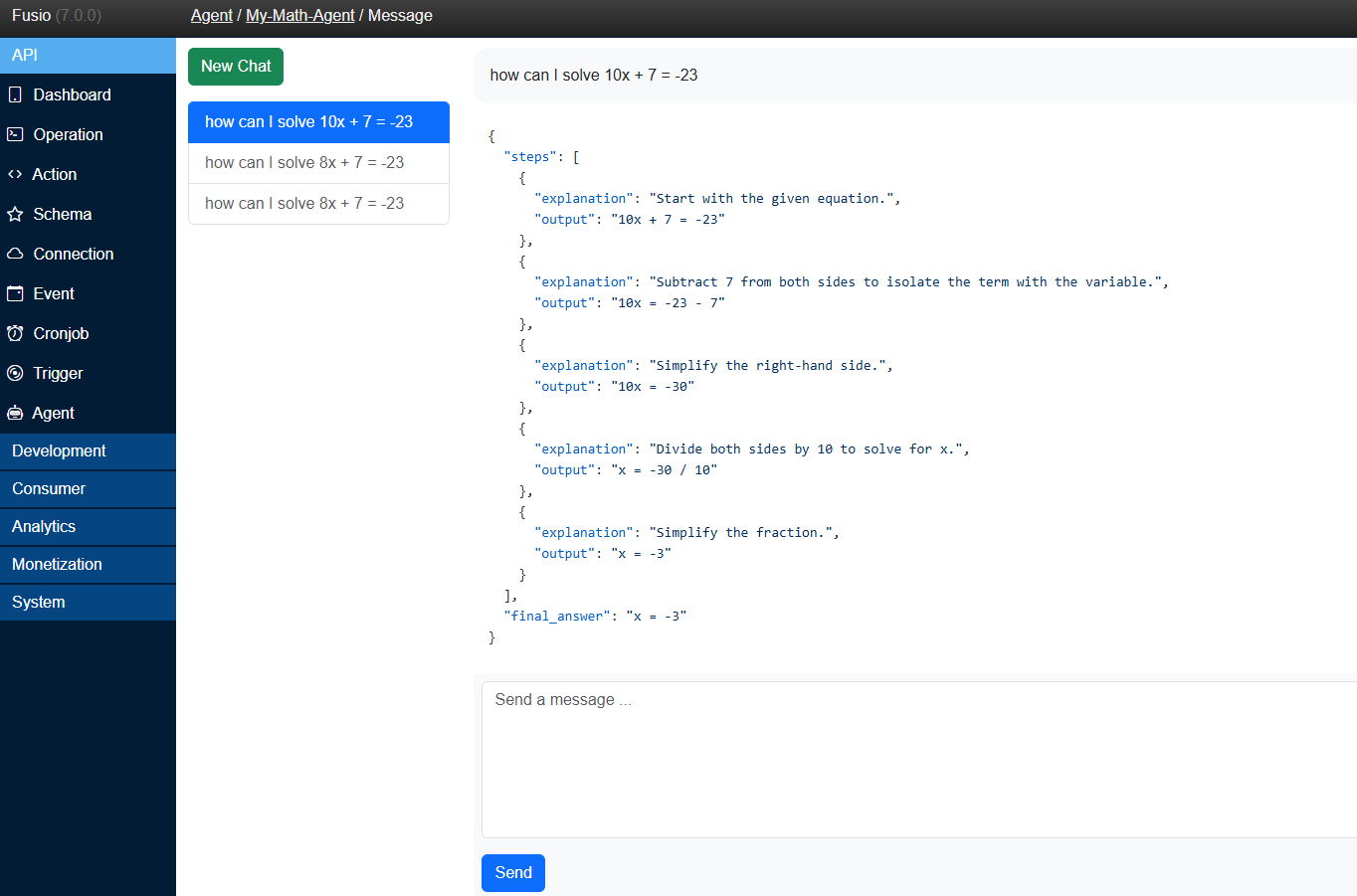
Every conversation is stored per user. When you send a message, Fusio passes the previous messages of the conversation to the LLM, so that the agent knows the context of the conversation.